




So you’ve decided to build your own WordPress site. Good choice. About 43% of all websites out there run on WordPress, and there’s a reason for that. It’s flexible. It’s free to start. And you don’t need to be a coder to get going.
But here’s the thing nobody tells you. Most first-time WordPress owners mess up in the same handful of ways. I’ve watched it happen over and over. People pour weeks into their site, then wonder why it’s slow, why Google ignores it, or why it got hacked last Tuesday.
The good news? These mistakes are all easy to avoid if someone tells you about them first. That’s what this post is for.
Let’s go through the big ones.
Picking the Wrong Hosting to Save a Few Bucks
This is where most people trip on day one. They find a hosting company charging $2 a month. It looks like a steal. They sign up and move on.
Then their site loads like it’s dragging a suitcase uphill.
Cheap shared hosting packs thousands of sites onto one server. Your site shares space with all of them. When another site gets busy, yours slows down. When someone else gets hacked, your site sits next door.
For a serious project, skip the rock-bottom plans. Go with managed WordPress hosting or at least a mid-tier option. You’ll pay maybe $15 to $30 a month, but your site will load in under two seconds instead of seven. Your visitors, and Google, will thank you.
Remember, when you create a website using WordPress, the host is the ground it stands on. Weak ground, weak site.
Installing Every Plugin You See
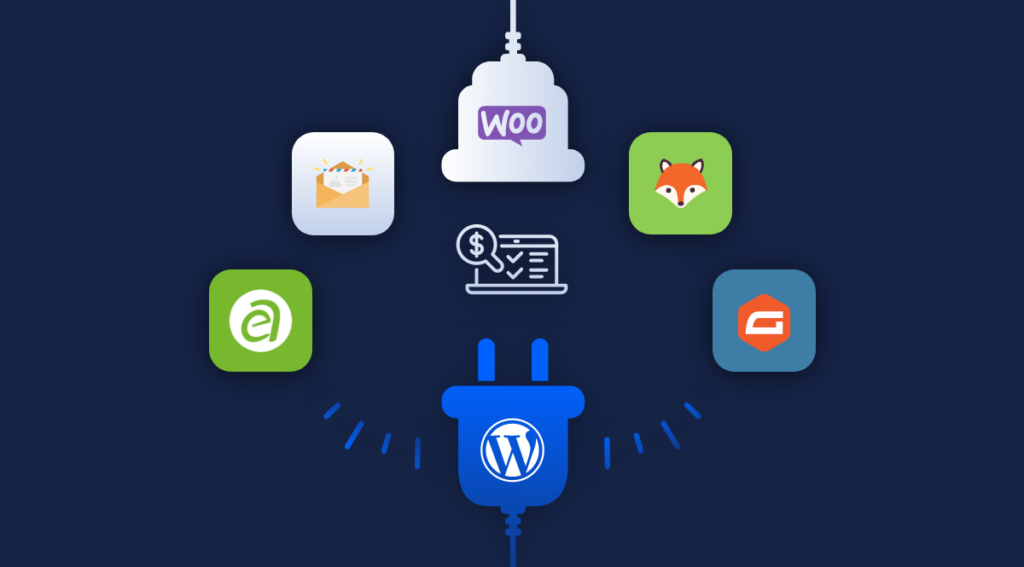
Plugins are fun. They feel like magic. Need a contact form? There’s a plugin. Need a slideshow? Plugin. Want a pop-up? Plugin.
Before you know it, you’ve got 40 plugins running. Your site is slow. Things randomly break. You don’t know which plugin is causing what.
Here’s a simple rule. Every plugin you add makes your site a bit slower, a bit riskier, and a bit harder to fix when things go wrong.
A proper WordPress plugin setup should be lean. Most sites need maybe 10 to 15 plugins total. One for SEO. One for security. One for caching. One for backups. One for forms. That’s most of it.
Before you install anything new, ask two questions. Do I really need this? And is there a way to do it without a plugin? If the answer to the first one is no, skip it. You’ll save yourself so much grief later.
Skipping the Security Basics
People think hackers only target big sites. That’s wrong. Bots scan the web all day looking for easy WordPress sites to break into. Yours is on the list whether you know it or not.
Most hacks happen because of stuff that takes ten minutes to fix. A weak password like “admin123.” A username that’s just “admin.” An outdated plugin nobody touched for two years. No two-factor login. No limit on login attempts.
When you set up your site, do these right away. Pick a real password, something long with weird characters. Change your login username to something that’s not obvious. Install a security plugin like Wordfence or Solid Security. Turn on two-factor login. Limit how many times someone can try to log in before they get locked out.
Ten minutes of work. Saves you weeks of cleanup later. Trust me on this one.
Ignoring Backups Until It’s Too Late
Backups are boring. Nobody wakes up excited to set them up. So most people don’t.
Then one day something breaks. A plugin update crashes the site. A hack wipes content. A typo in a file takes everything down. And suddenly that boring backup would have been the only thing standing between you and starting over from scratch.
Set up automatic backups before anything else. Use a plugin like UpdraftPlus. Send the backups somewhere safe like Google Drive or Dropbox, not just your own server. If your server crashes, a backup on that same server goes down with it.
Back up once a week for a normal site. Daily if you post often or run a shop. Check now and then that the backups actually work. A backup you’ve never tested is a wish, not a plan.
Picking a Theme Based on Looks Alone
You see a pretty theme. It has sliders, animations, and 15 demo layouts. You buy it. You install it. Your site looks amazing.
Three months later, your pages take six seconds to load. Google drops you in the rankings. You try to change the homepage and the whole thing breaks.
Heavy themes are a trap. The more features they cram in, the slower your site gets. Most of that pretty stuff you saw on the demo is what’s dragging you down.
When you create a website using WordPress, pick a theme that’s light and clean first. GeneratePress, Astra, Kadence, and Blocksy are solid free options. They load fast and let you add what you need instead of forcing 50 features you don’t use.
Or, if your budget allows, go with custom WordPress website creation. A developer can build you something light, fast, and tailored to your business. It costs more upfront but saves you headaches forever.
Looks matter, sure. But speed and stability matter more.
Forgetting About Mobile Users
Check your own phone. You probably browse websites on it more than on your laptop. Everyone does.
Yet tons of new WordPress sites still get built like it’s 2012. The desktop version looks great, and the mobile version is a mess. Buttons are too small. Text overflows. Menus don’t work right. Images crop weirdly.
Google now ranks sites based on how they look on phones, not computers. So if your mobile site is broken, your rankings will be too.
Every time you design a page, check it on your phone before you move on. Not just the size but how it actually feels to use. Can you tap the buttons? Does the menu open? Do the forms work?
A quick mobile check after each page saves you from a full redesign later.
Not Setting Up SEO From the Start
Lots of owners finish building their site, launch it, and then go “okay, now how do I get on Google?” By then, months have been wasted.
SEO isn’t something you sprinkle on at the end. It’s baked in from the start. Or it’s not.
As soon as you install WordPress, install a good SEO plugin. Rank Math and Yoast are both solid. Set your permalinks to use post names instead of the ugly default with question marks and numbers. Submit your sitemap to Google Search Console. Write real meta titles and descriptions for every page.
Also pay attention to your content. Each page should have one clear topic. Use headings to break things up. Write for real people, not search bots. If your writing helps the reader, Google usually figures it out.
Getting the basics right from day one saves you from redoing half your site later.
Using Tiny, Huge, or Wrong-Sized Images
Images are tricky. Upload them too small and they look blurry. Upload them too big and they kill your page speed.
The most common mistake? People upload photos straight from their camera or phone. A single image can be 5MB or more. On a page with ten images, that’s 50MB. Your visitor’s browser has to download all of that. It takes forever.
Before you upload, resize your images. Most web photos only need to be 1920 pixels wide at most. Many are fine at 1200 or even 800. Use a free tool like TinyPNG or ShortPixel to shrink file sizes without losing quality.
Then install an image plugin that converts your pictures to WebP, a newer and lighter format. Your pages will load way faster without you doing anything else.
Not Keeping a WordPress Website Setup Guide for Yourself
This one sounds nerdy but it matters. When you build your site, write down what you did. What hosting you used. What login info goes where. Which plugins you picked and why. What settings you tweaked.
Six months from now, you’ll forget all of it. And when something breaks or you want to move the site, you’ll be digging around trying to remember. A simple document saved in Google Drive takes 20 minutes to make and saves you hours later.
Treat this as your personal wordpress website setup guide. Future-you will send present-you a thank-you card.
Launching Without Testing
The final mistake. People rush to go live the second the site looks done. Then visitors start finding bugs the owner missed.
Before you launch, test everything. Click every menu item. Fill out every form. Check the site on your phone, your tablet, and at least two browsers. Read every page out loud to catch typos and awkward sentences. Ask a friend to use the site and tell you where they got stuck.
This one extra afternoon of testing catches problems that would otherwise embarrass you in front of real visitors.
Wrapping It Up
Building a WordPress site isn’t hard. But it’s easy to do wrong.
The good news is that most of the mistakes above are small fixes. They just need someone to point them out. Get the hosting right. Keep your plugins lean. Lock the site down. Back it up. Pick a light theme. Think about mobile. Set up SEO early. Fix your images. Write things down. Test before you launch.
Do these things and your site will already be ahead of most of the competition. Skip them and you’ll spend months fixing problems that never had to exist.